
DISPL Player and Designer unable to connect to DISPL servers (TLS Certificate issue)
You may notice two symtoms happening simultaneously:
- On DISPL Designer: "Authorization error. Check your internet connection and try again."
- On DISPL Player: "Failed to connect to server"
Normally, first step we must check if there is really access to DISPL servers.
If there is good connection, but the issue persists, it may be a TLS certificate error. Please follow the tutorial below.
How to enable TLS 1.2
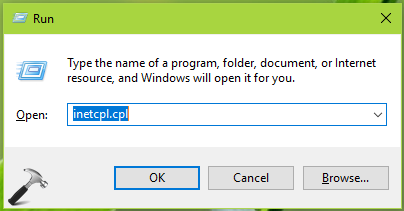
1. Press  + R and type inetcpl.cpl in the Run dialog box, to open Internet Properties.
2. In Internet Properties window, switch to Advanced tab. Under Settings, scroll to Security heading. Beneath it, you’ll find Use TLS 1.0, Use TLS 1.1, Use TLS 1.2 options. Tick the box for Use TLS 1.2.
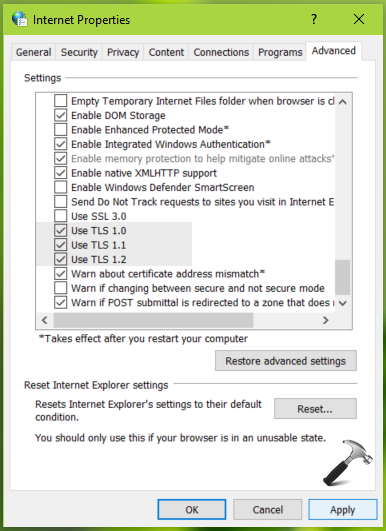
3. Once you’re done with your selection, click Apply followed by OK to save your settings.
4. Restart your computer.
Comments
0 comments
Please sign in to leave a comment.